App Usermanual
Before you start
Use VPN for better connectivity.
1. Sign up and verify your email
Sign up on the main website and create your account by verifying your email. After verification, set your password to access your dashboard.
2. Request your HAMS app account
In your dashboard, select Request App Account and proceed to purchase. Follow the payment instructions, upload your payment screenshot, and select Payment done — notify admin.
3. Receive your app login details
After your payment is verified, you will receive your HAMS app username and password in both your email and the App account details section of your dashboard.
4. Log in to the HAMS app
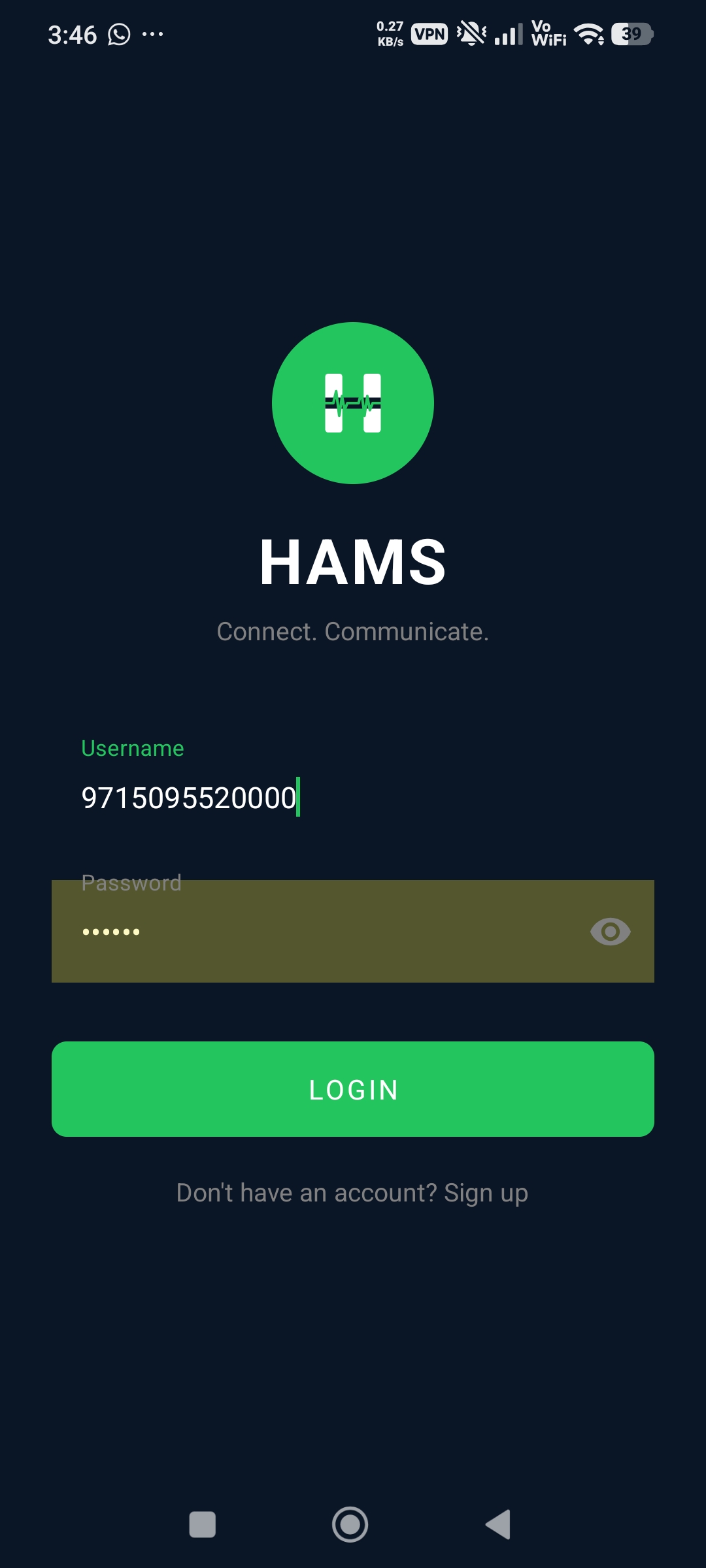
Open the HAMS app. Enter the app username you received in the Username field and the app password in the Password field, then tap LOGIN.
Use the app login details sent to your email and dashboard. Your website email and password are used to sign in to the website.
5. Call a mobile number
Open the dial pad and enter + followed by the country code and mobile number, with no spaces. Use this format: +countrycodeNumber.
Examples:
- +44779919191
- +9377181818
- +91881010101
- +923458181818
After entering the number, tap the call button.
6. Call another HAMS user
To make an app-to-app call, enter the other HAMS user's username directly in the dial pad, without a + sign. For example: 971509552721. Then tap the call button.
7. Send an encrypted SMS
Both the sender and recipient need a compatible HAMS version with the encrypted SMS feature, an active SIM, and mobile SMS service. Messages are sent through your SIM's carrier to a mobile phone number, not a HAMS username.
- Open the HAMS menu and select Encrypted SMS Communication.
- Tap Set up SMS, read the explanation, and select Continue. Choose HAMS as your default SMS app and grant the requested SMS permissions. If prompted, tap Grant SMS permissions. The recipient must also complete this setup.
- Enter the recipient's mobile number with + and the country code, for example +923458181818, or tap Contacts to choose a number.
- Select Experimental encrypted SMS. The alternative Ordinary SMS — not encrypted sends an unencrypted message.
- Select the active SIM you want to use and type your message.
- Tap Review and send. Check the recipient, selected SIM, and SMS segment count, then tap Send. Carrier charges apply; encrypted messages can use multiple SMS segments.
- The recipient can read compatible encrypted messages in HAMS under Messages. Tap Refresh if needed.
About this experimental feature: HAMS currently uses a shared app key that can be extracted. This does not reliably protect messages against carriers or verify the sender, and it is not suitable for sensitive information. Read About this test feature in the app before using it.
Making HAMS the default SMS app also moves ordinary SMS handling to HAMS. Picture and group MMS are not supported in this test feature, so use a test phone or SIM. SMS delivery is not guaranteed. To return to your usual messaging app, tap Change default SMS app or open Android Settings → Default apps → SMS app.
8. Stealth Mode — Coming Soon
Stealth Mode is a planned feature that will let you make HAMS look like a normal calculator. When someone casually opens the app on your phone, it is intended to show a calculator-style screen instead of the HAMS calling interface.
This feature is not available yet. The planned calculator appearance is not a guarantee that HAMS will be hidden from Android settings or a detailed device inspection.